- CompressConvertAI PDF
- Organize
- View & Edit
- Convert from PDF
- Convert to PDF
- SignMoreScan
- Home
- ›
- ›How to Compress Transcripts with AI for Free
How to Compress Transcripts with AI for Free
Compress transcripts with AI in seconds. Summarize long PDFs, reduce file size, and keep everything readable and easy to share.
If you work with long transcripts, you usually have two problems: They’re hard to read, and heavy to store or send. With Smallpdf’s AI PDF Summarizer and Compress PDF features, you can turn long transcripts into short summaries and smaller files in just a few clicks.
Below, we show you how to summarize transcripts with AI, how to reduce transcript PDF file size, and where both options make the most sense.
Quick Summary
What an AI PDF Summarizer Does for Transcripts
An AI PDF summarizer reads your transcript and produces a shorter version that keeps the main ideas, decisions, and action items. You upload once, and AI does the hard reading for you.
For transcripts, this means you can:
Turn hours of meeting content into a page of key points.
Scan interviews and research calls without reading every line.
Share summaries with colleagues instead of sending a 100-page PDF.
Our AI works with regular PDFs, DOCX, and other text formats, and even scanned transcript PDFs through OCR.
How to Summarize Transcript PDFs with AI
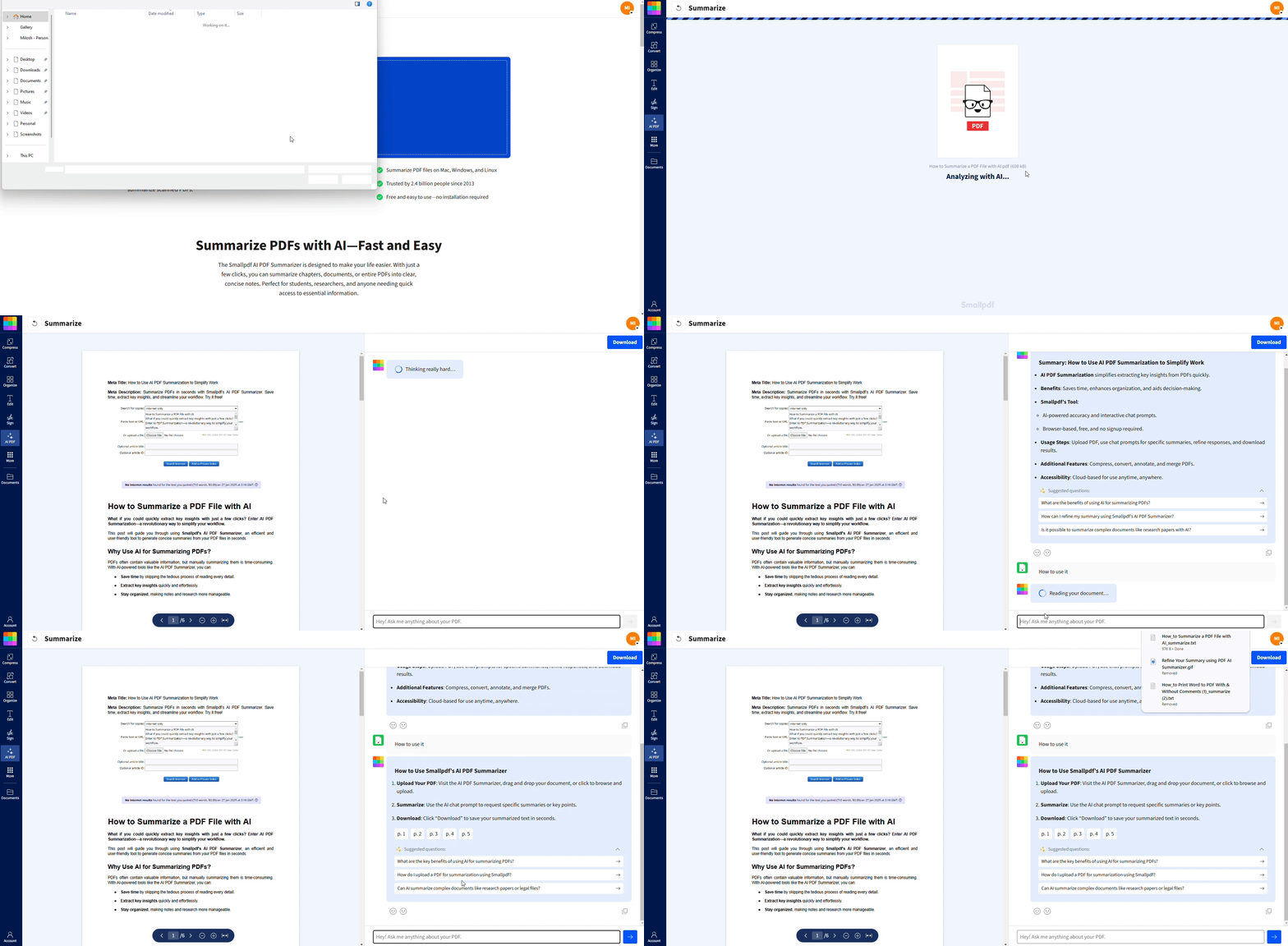
You can summarize a transcript PDF in a few simple steps.
Step 1: Upload Your Transcript
Open AI PDF Summarizer on Smallpdf.
Click “Choose Files” or drag and drop your transcript PDF into the upload area.
You can also pull transcripts directly from Google Drive, Dropbox, or OneDrive.
Step 2: Let AI Create Your Transcript Summary
Once the file is uploaded, AI starts reading it automatically.
The summarizer scans the entire transcript and builds a clear, structured summary.
For scanned transcripts, OCR runs first so the AI can read the text.
You can switch between bullet style summaries and paragraph style summaries, depending on how you prefer to read.
Step 3: Ask Follow-Up Questions About the Transcript
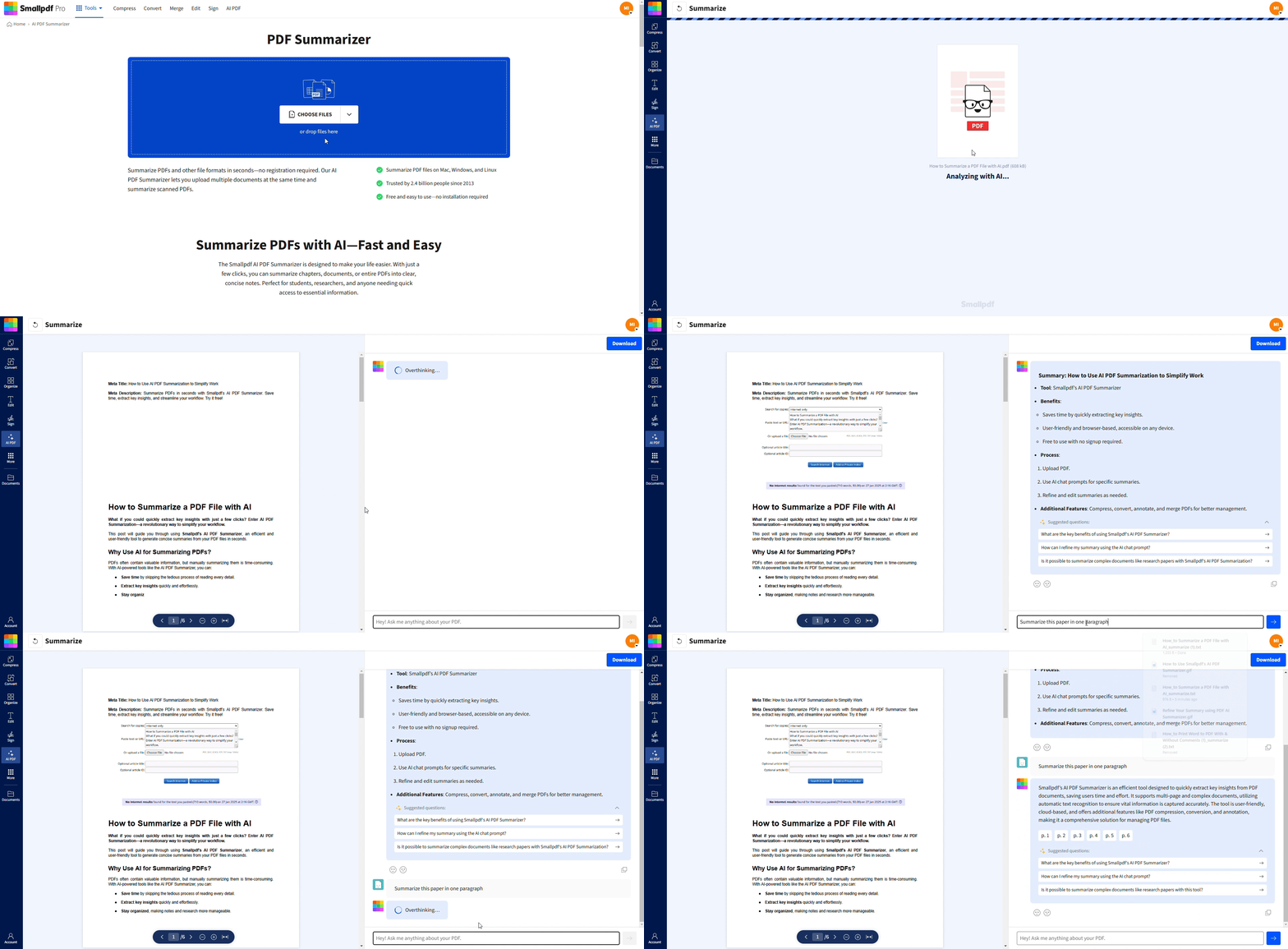
Use the chat prompt next to your summary to ask deeper questions, such as:
‘What decisions were made in this meeting?’
‘List all action items with owners.’
‘Summarize the discussion about pricing.’
AI points you to the relevant parts of the transcript and gives concise answers.
Step 4: Copy, Export, or Reuse Your Summary
Use the copy button to grab the summary and paste it into notes, slides, or emails.
Export the summary as a new document if you want a separate file.
Keep the original transcript available in case you need to go back to the full context.
How to Compress Transcript PDFs for Smaller File Size
If your main goal is file size, not content length, you should compress the transcript PDF instead of summarizing it.
Quick steps to compress a transcript PDF:
Open Compress PDF on Smallpdf.
Upload your transcript PDF from your device or cloud storage.
Choose your compression level (Basic for balance, Strong for maximum size reduction).
Click “Compress” and wait a few seconds.
Download the smaller PDF and share or store it as needed.
Compression does not change the content of your transcript. It simply reduces file size, which helps with email limits, storage, and upload speed.
Quick start: Upload or drag-and-drop your transcript PDF in the compressor below to reduce size without reformatting.
Key Features of the Smallpdf AI PDF Summarizer for Transcripts
Our AI summarizer is built to handle real-world transcript workflows, not just short documents.
1. Handles Very Long Transcripts
Works with documents over 300,000 words, such as multi-hour meetings or full-semester lecture notes.
Keeps the main themes and removes repeated or low-value lines.
2. Works With Scans And Multiple Formats
Accepts files like PDF, DOCX, PPTX, TXT, RTF, and more.
Uses OCR on scanned transcripts so text becomes searchable and summarizable.
3. Flexible Summary Formats
Bullet point summaries for quick scanning.
Paragraph summaries when you need more context and continuity.
You can move between both styles in the same session.
4. Chat-based Deep Dive
Ask the AI about specific parts of the transcript, instead of reading everything.
Focus on decisions, risks, highlights, or tasks with a single prompt.
5. Privacy and Security
Files are protected with TLS encryption during processing.
Documents are automatically deleted after a short retention period.
We follow GDPR and industry security standards across our platform.
Best Use Cases for AI Transcript Summaries
AI summaries help across different roles and document types.
1. Meeting and Workshop Transcripts
Summarize full workshop recordings into a short recap with decisions and next steps.
Share summaries with teams that could not attend the session.
2. Interview and Research Calls
Turn interview transcripts into thematic summaries for recruiting, UX, or market research.
Quickly find quotes or patterns without manual scanning.
3. Lectures and Training Sessions
Convert long lecture transcripts into study summaries and revision notes.
Highlight definitions, examples, and key explanations for exam prep.
4. Legal and Compliance Transcripts
Pull out key statements, obligations, and references from hearings or internal reviews.
Use summaries to decide which parts need closer legal analysis.
Tips for Better AI Transcript Summaries and Compression
A few small changes can improve your results.
1. For the Best Summaries
Use clear audio when creating transcripts so the base text is accurate.
If you can, remove obvious non-content parts before uploading (for example, long “small talk” sections).
Ask focused prompts like “List key risks mentioned” instead of only “Summarize this.”
2. For the Best Compression
Compress after you finalize the transcript text to avoid reprocessing.
If quality matters for printed copies, choose a lighter compression level first.
For sharing only, Strong compression can make very large transcripts much easier to send.
Start Summarizing and Compressing Transcripts for Free
By combining AI summarizing with smart compression, you can keep your transcripts useful, searchable, and easy to share, without being overwhelmed by size or length.
Open AI PDF Summarizer and Compress PDF on Smallpdf, and let us handle the heavy lifting on your next transcript.
Want to Summarize PDF With AI?
Frequently Asked Questions
Can I use AI to both summarize and compress a transcript?
Yes. You can first use AI PDF Summarizer to get a short, readable version of the transcript, then use Compress PDF to reduce file size. This gives you a lighter, easier-to-share version of both the full transcript and the summary.Does AI change the meaning of my transcript when summarizing?
AI focuses on keeping the original meaning while removing repetition and detail that is not essential. For critical documents, you should still review the summary and compare it with the original before making decisions.Will compressing a transcript PDF affect text quality?
Compression mainly targets images and file structure. Text usually stays clear and readable, especially at standard compression levels. If your transcript contains many images or scans, very strong compression can sometimes reduce visual sharpness.Can I summarize audio directly, or do I need a transcript first?
You need a transcript file first. Once you have the transcript as a PDF or another supported format, you can upload it to AI PDF Summarizer and let AI handle the rest.Is there a limit to how big my transcript PDF can be?
Our AI summarizer is designed for long documents and can handle large files with very high word counts. Extremely big files may take longer to process, but you can usually still upload and summarize them without splitting.Is it safe to upload confidential transcripts?
We take security and privacy seriously. Files are encrypted in transit, stored securely during processing, and automatically deleted after a short time. For very sensitive material, you can also combine summaries with local storage and careful sharing practices on your side.Compress transcript PDFs faster with Smallpdf Pro
Related Articles