


- CompressConvertAI PDF
- Organize
- View & Edit
- Convert from PDF
- Convert to PDF
- SignMoreScan
- Home
- ›
- ›How To Convert a Downloaded Google Sheet from HTML to PDF
How To Convert a Downloaded Google Sheet from HTML to PDF
Turn any Google Sheet to PDF in just a few clicks. Then fix HTML downloads, polish formatting, and share clean reports with your team.
You might want to convert a Google Sheet to PDF for a report. Or maybe you’re dealing with a downloaded HTML version that just doesn’t look right.
Either way, we’ll walk you through the fastest built-in method to convert a downloaded Google sheet from HTML to PDF format. We’ll also take a look at smarter workflows for HTML files, automation, and cleanup with Smallpdf.
Quick Start: Google Sheet to PDF in a Few Clicks
If you still see layout issues, the next sections will help you fine-tune the export or fix problem files.
How To Convert Google Sheets to PDF (Built-In Method)
The built-in export is the main Google Sheet to PDF workflow and usually the best starting point. It preserves most formatting and gives you good control over how the PDF looks.
Step 1: Open the Export Dialog
Open the Google Sheet you want to convert.
Click “File” in the top menu.
Hover over “Download” and select “PDF document (.pdf).”
A preview window appears with export options on the right.
Step 2: Choose Orientation and Paper Size
Set “Portrait” for narrow, single-column sheets or invoices.
Use “Landscape” for wide spreadsheets with many columns.
Pick “Letter” (US) or “A4” (international) unless you have a specific requirement.
Use custom size only if your organization needs a special format.
Step 3: Adjust Scaling and Fit
Try “Fit to width” to keep all columns visible on each page.
If the sheet is very wide, set a custom scale (for example, 75%) and test.
Avoid going below 50%, as text becomes hard to read.
For very large datasets, consider splitting content across multiple sheets instead of shrinking everything.
Step 4: Set Headers, Footers, and Gridlines
Turn on headers and footers if you need page numbers, dates, or sheet names.
Turn off headers and footers for a cleaner, report-style PDF.
Keep gridlines if you want that classic spreadsheet structure.
Disable gridlines if you’re presenting data in a more polished, document-style layout.
Step 5: Export And Review
Check the preview for missing rows or clipped columns.
Adjust margins or scaling if anything looks off.
Click “Export” to download your Google Sheet to PDF.
Open the PDF and quickly scan key pages before sending it on.
Other Methods to Convert Google Sheet to PDF
Sometimes you need more than a one-off export. Here are additional ways to handle recurring reports and automation.
1. Built-In Download (Best For One-Off Reports)
Use “File” > “Download” > “PDF document” when:
You are actively editing the sheet in Google Sheets.
You need to tweak orientation or scaling for a specific report.
You want full control over how each export looks.
2. URL Export Endpoint (/export?format=pdf)
Google Sheets can generate a direct PDF download link using an export URL:
https://docs.google.com/spreadsheets/d/[SHEET_ID]/export?format=pdf&gid=[SHEET_GID]
This works well when you:
Share a link that always downloads the latest version as a PDF
Embed the link into internal dashboards or tools
Want to avoid manually clicking through the export dialog each time
3. Automate Exports With Apps Script
If you regularly send the same report, Google Apps Script can generate PDFs for you. A script can:
Export one or more sheets as PDF on a schedule.
Save PDFs to a specific Drive folder.
Email exported PDFs to a list of recipients.
You can then pull those PDFs into Smallpdf for merging, compressing, or securing before sharing externally.
When Google Sheets Downloads as HTML (And What To Do)
Sometimes, the file you download is not a neat PDF or XLSX, but an HTML file. That usually happens if the wrong export option is chosen or when a tool captures the sheet as a web page.
HTML is built for browsers, not for printing, so layout can shift, and you may end up with several related files.
You have two main options here:
Convert the HTML directly in your browser.
Use Smallpdf to rebuild a clean spreadsheet and then export to PDF again.
Convert a Downloaded HTML Sheet to PDF in Your Browser
If your downloaded HTML file opens in Chrome, Edge, Firefox, or Safari, you can turn it into a PDF without installing anything.
Step 1: Open the HTML File
Find the HTML file on your computer.
Double-click it to open in your default browser.
Step 2: Print to PDF
Press Ctrl+P (Windows) or Command+P (Mac) to open the print menu.
In “Destination,” choose “Save as PDF” instead of your printer.
Adjust:
Margins, so content is not cut off
Page size, to match what you used in Google Sheets (Letter or A4)
Orientation, based on how wide your sheet is
Click “Save” and choose where to store your new PDF.
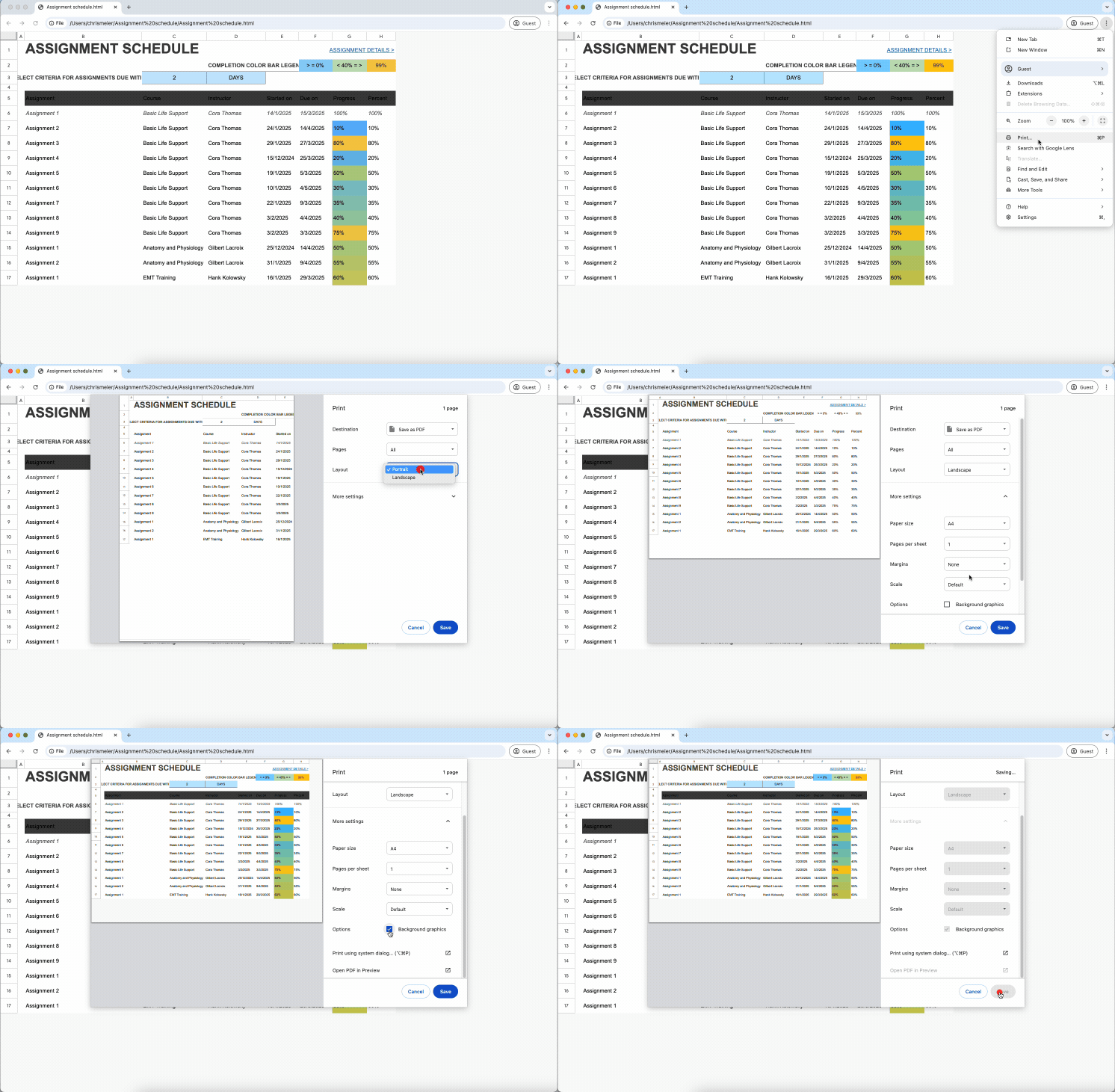
This method is quick and fine for simple layouts. For complex tables or long reports, the PDF might still feel slightly off compared to the original Google Sheet.
Use Smallpdf to Clean up HTML-Based Sheets
If the HTML version does not look right, you can use Smallpdf to rebuild a proper spreadsheet and then export that to PDF.
Step 1: Turn the HTML-Based PDF Into Excel
Upload your PDF (created from HTML) to our PDF Converter.
2. Choose Excel (.xlsx) as the output format.
3. Download the converted spreadsheet.
Step 2: Fix Formatting in Sheets or Excel
Open the .xlsx file in Google Sheets, Excel, or another editor.
Restore column widths, fonts, and header rows.
Check totals and formulas to see if they were converted to values.
Step 3: Export Back to PDF
Once the layout looks clean, use the built-in Google Sheet to PDF method again: “File” > “Download” > “PDF document.”
Set your export options like before and download the final PDF.
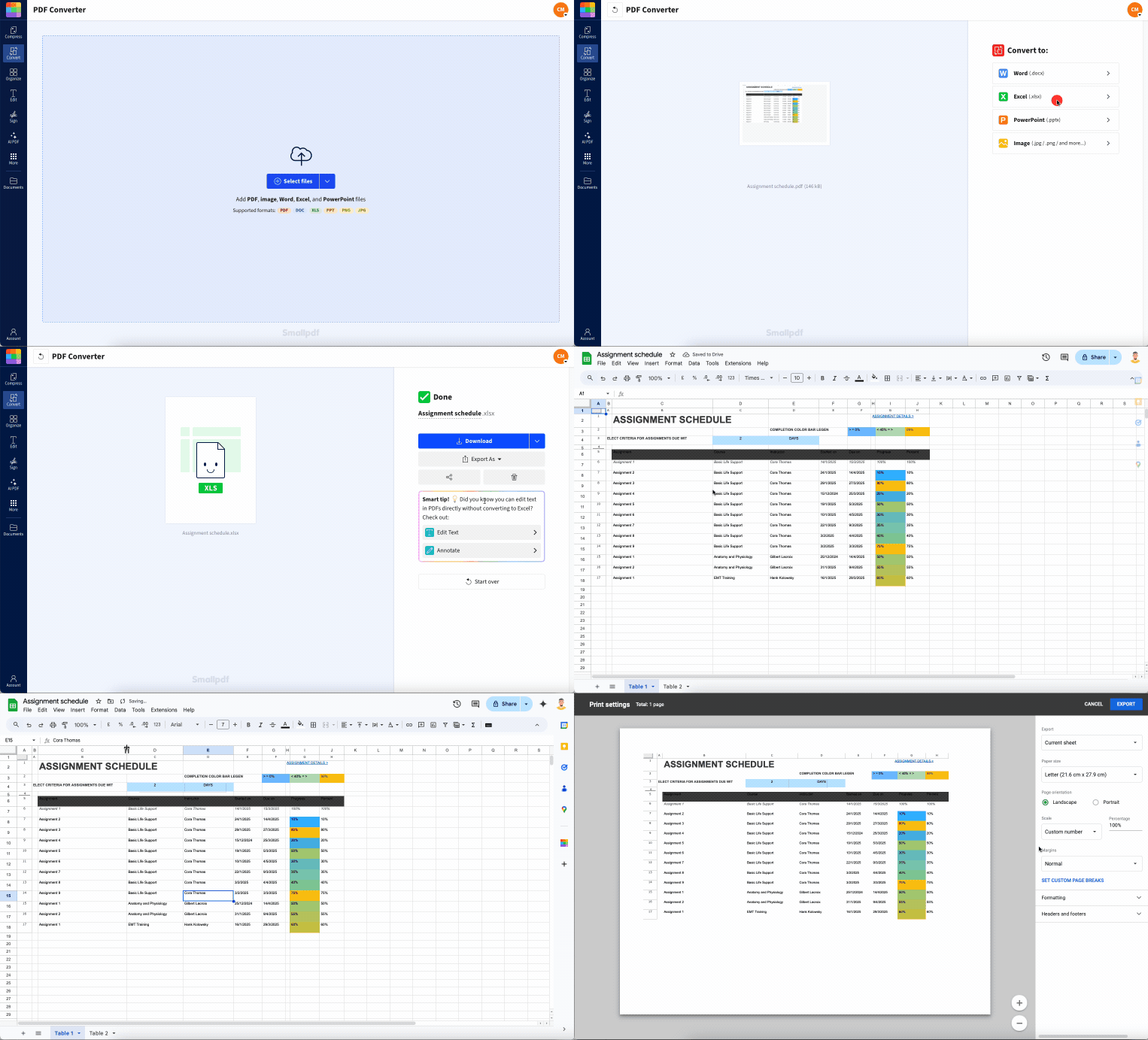
This workflow gives you two benefits: a polished PDF and a live spreadsheet you can edit later without another conversion.
Common Google Sheet to PDF Issues (And Fixes)
Different user scenarios bring different problems. Here are some we see often.
Missing rows or columns:
Unhide hidden rows or columns before exporting.
Check that your print area covers the full range.
PDF is too wide or tiny:
Switch to Landscape and use “Fit to width.”
Avoid scaling below 50%. Instead, split data across sheets.
Multiple tabs need one PDF:
Export each tab as a separate PDF.
Use Smallpdf Merge PDF to combine them into one file in the right order.
File size is too large:
Heavy sheets with images generate big PDFs.
Run Compress PDF in Smallpdf to shrink size without hurting readability.
Benefits and Use Cases for Google Sheet to PDF
Converting from Google Sheet to PDF is useful for:
Financial reports that must look consistent on every device
Invoices and quotes you do not want others to edit
Project trackers you need to share as a snapshot in time
Inventory lists or backups you want to archive offline
This is because PDFs:
Preserve formatting across platforms
Create read-only copies for clients and managers
Print predictably without extra setup
Work well with added security, like password protection
Turn Google Sheets Into Clean PDFs With Smallpdf
Converting a Google Sheet to PDF shouldn’t break your layout or cost you extra time. Use the built-in export for quick reports, fix any HTML-based downloads with our PDF Converter, and then merge, compress, or protect your files with Smallpdf.
When you are ready to streamline your workflow, export your next Google Sheet to PDF, upload it to Smallpdf, and let us help you turn it into a polished, shareable document.
Want to Turn Google Sheet into PDF for Free?
FAQs About Converting Google Sheet to PDF
Can I export multiple sheets into one PDF?
Google Sheets usually exports only the active sheet. To combine multiple sheets, export each tab separately as a PDF, then use the Merge PDF to create a single, combined document.Why are some rows or columns missing in my PDF?
Hidden rows or columns are not included in the export. Unhide them first and check your print area and scaling settings to make sure the entire range is included before you export again.How do I reduce the size of a Google Sheet PDF?
Large sheets with images or many pages create big PDFs. After export, upload the file to Smallpdf and use Compress PDF to reduce size while keeping the content readable.Can I convert Google Sheet to PDF on mobile?
Yes. In the Google Sheets mobile app, tap the three dots in the top right, choose “Share & export,” then select “Export as PDF.” You can also open the exported PDF in Smallpdf on your phone for compression or merging.How do I convert a PDF back to Google Sheets?
Use the Smallpdf PDF to Excel feature to turn the PDF into an Excel file. Then upload that Excel file to Google Drive and open it in Google Sheets for further editing.What happens to formulas and charts in the PDF?
When you export Google Sheet to PDF, formulas become their calculated values and charts become static images. The PDF is a snapshot It won’t recalculate data.Turn downloaded HTML into PDF faster with Smallpdf
Related Articles
