


- CompressConvertAI PDF
- Organize
- View & Edit
- Convert from PDF
- Convert to PDF
- SignMoreScan
- Home
- ›
- ›How To Convert a PDF to a Vector File (3 Different Options)
How To Convert a PDF to a Vector File (3 Different Options)
Need to convert PDF to vector for print or web? We’ll help you prep the file in Smallpdf, then export clean SVG or EPS without surprises.
A PDF is a versatile format that can include both vector and raster elements. Vector files, on the other hand, use mathematical paths to create sharp, scalable images.
If you zoom in on a vector file, it stays smooth. Zoom in on a raster image, and you’ll see pixelation. That’s why vector files are perfect for things like logos, graphics, and detailed designs.
Get a clean SVG or EPS by prepping your PDF in Smallpdf, then exporting in a vector editor with fewer surprises.
Quick-Start: Convert PDF to Vector File in Four Steps
Step 1: Prep the PDF
Open your PDF in Smallpdf and make it easier to work with before you export anything. If you only need one page, upload your file in the Extract PDF Pages area below to pull out the exact page you’ll import into your vector app.
Step 2: Clean Up the File So It Imports Better
If your PDF is huge, run it through Compress PDF first. A smaller PDF usually imports faster and is less likely to hang during conversion. Upload it in the Compress PDF area below to reduce the size before converting.
Step 3: Convert in a Vector Editor
Open the PDF in Inkscape, LibreOffice Draw, or Scribus. If the PDF contains real vector paths, you’ll be able to select shapes, curves, and text elements instead of a single flat image.
Step 4: Export as SVG or EPS
Export to SVG for web or UI work, and export to EPS for print workflows that expect it. After export, zoom in hard and scan edges, text, and thin lines to confirm everything stayed sharp.
What It Means To Convert PDF to Vector
A lot of people expect vector conversion to turn a scan or photo into editable paths, but it doesn’t work that way.
A PDF converts cleanly when the PDF already contains vector data, like text, shapes, paths, and line art generated from design software.
If the PDF is mostly raster content, like a scanned page or a flattened image, you can still export it as SVG or EPS, but the result stays raster-like when you scale it.
Think of it this way:
If you can select individual letters or shapes, you’re in good shape.
If everything behaves like one big image, you’re dealing with raster content.
How To Check if Your PDF Has Vector Content
The fastest check is zoom.
Zoom in to 400 percent or more. If edges stay crisp and curves look smooth, you’re probably seeing vectors. If edges turn blocky or fuzzy, that element is raster.
If you want a second check, open the PDF in a vector editor:
If you can click a single shape, line, or text block, those are vector elements.
If one click selects the whole page as one object, it’s likely flattened.
Use Smallpdf To Get Your PDF Ready for Vector Work
Even when the vector export happens in another app, Smallpdf can keep the workflow clean and predictable.
You can:
Extract only the page you need, so you’re not importing a 40-page PDF into Inkscape.
Compress the PDF to speed up uploads and imports.
Translate the PDF first if you need localized text before you export.
You can upload from your device, Google Drive, Dropbox, or OneDrive, then download back to your device once you’re done prepping.
Common Vector File Types
SVG and EPS are the two formats you’ll run into most.
SVG is usually the best fit for:
Websites and web apps
UI icons
Lightweight graphics you’ll embed online
EPS is usually the best fit for:
Print shops and signage
Some professional design handoffs
Older workflows that still expect EPS delivery
If you’re not sure, export both once, compare the results, then stick with the one that matches your delivery requirements.
How To Convert a PDF to a Vector File Using Free Software
1. LibreOffice Draw
LibreOffice can work well when the PDF is mostly vector and not overly complex.
Open LibreOffice Draw, then open your PDF.
Click into the page and try selecting shapes or text blocks.
Go to “File” > “Export,” then choose SVG as your format.
Save, then open the SVG to confirm it stayed sharp.
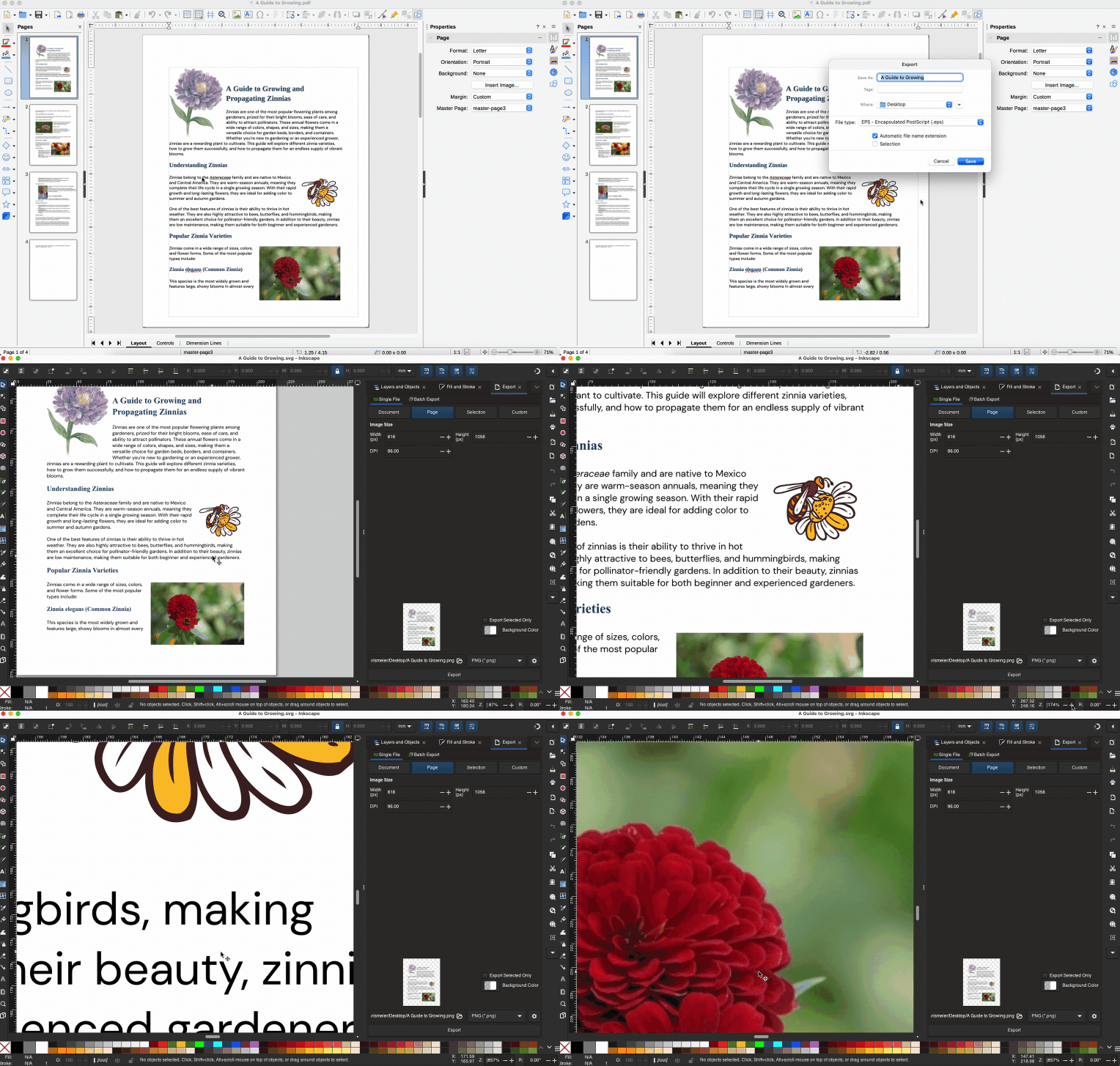
If LibreOffice imports the PDF with shifted text or weird spacing, try Inkscape next. Inkscape is often more forgiving with tricky PDFs.
2. Scribus
Scribus is a solid option when you need layout control and export options that feel closer to print workflows.
Open Scribus, then import your PDF.
Click elements to confirm they’re editable objects.
Fix anything that imported oddly, like overlapping text or missing strokes.
Export as SVG or EPS.
Scribus can be picky about fonts. If you see substituted fonts, install the missing font locally, then import again.
3. Inkscape
Inkscape is usually the first choice for straightforward PDF to SVG conversion.
Open Inkscape, then open your PDF.
In the import options, test text handling if the PDF contains important typography.
Edit paths, remove extra clipping masks, and simplify shapes if needed.
Go to “File” > “Save As,” then choose SVG or EPS.
If the PDF is multi-page, import only the page you need. That keeps the file lighter and easier to edit.
Troubleshooting: Fix Common PDF-to-Vector Problems
1. The Export Looks Blurry or Pixelated
This usually means your PDF content is raster.
Try this quick check:
Zoom in hard on the original PDF. If it pixelates there, it will pixelate after export, too.
If you only need the embedded images, use Smallpdf PDF to JPG and select “Extract images only” to pull them out cleanly.
2. Fonts Change After Import
This happens when the editor doesn’t have the same font installed.
Fixes that usually work:
Install the missing font, then import again.
Convert text to paths before final delivery, if your workflow allows it. This keeps the look consistent, but you lose editable text.
3. The SVG File Is Massive
Common causes include embedded raster images, unflattened effects, and overly detailed paths.
Try:
Removing unused layers and hidden objects.
Simplifying paths for line art.
Exporting only the artboard or selection instead of the full page.
4. EPS Export Fails or Looks Wrong in Print
EPS workflows can break on transparency, gradients, and complex clipping.
Try:
Flattening transparency in your editor before export.
Exporting as PDF again from the editor, then letting the print shop handle conversion if they prefer PDF delivery.
Get Your PDF Ready in Smallpdf, Then Export Cleanly
If your goal is a clean vector export, start by simplifying the PDF before you import it anywhere. Use Smallpdf to extract the one page you need, compress large files, and translate text when localization matters.
Once the PDF is lean and focused, bring it into Inkscape, LibreOffice, or Scribus and export your SVG or EPS with fewer surprises.
Frequently Asked Questions
Can you convert a PDF into a vector file?
Yes, as long as the PDF already contains vector elements like paths, shapes, or text. If the PDF is a scan or a flattened image, exporting to SVG or EPS won’t create real vectors.How can I vectorize a scanned PDF?
A scanned PDF is raster content. You can trace it into vectors in a design app, but that’s a redraw process, not a clean conversion. If you only need the scan as an image, exporting the pages or images is often the better route.Why does my PDF open as one big image in Inkscape?
That usually means the PDF was flattened, exported from a scanner app, or saved as images inside a PDF wrapper. Zoom in to confirm. If it pixelates, it’s raster.What’s the best format for saving a PDF as a vector?
SVG is best for web and UI work. EPS is best for print workflows that request EPS specifically. If you’re handing off to a printer, ask what they prefer before you export.Is it safe to upload a PDF for prep work online?
Smallpdf secures file transfers with TLS encryption and follows recognized security and privacy standards, including ISO/IEC 27001 and GDPR. For most tools, files are automatically deleted after a short period.Can you convert Kindle to PDF on a Mac?
Yes, the same process works on Mac using Calibre and the DeDRM plugin. The steps are identical to Windows.Prepare PDF files for vector export on Smallpdf
Related Articles
