- CompressConvertAI PDF
- Organize
- View & Edit
- Convert from PDF
- Convert to PDF
- SignMoreScan
How To Extract Text From Images in PDF
Extract text from images in PDF with our online OCR. Turn scans and screenshots into searchable, editable text in under a minute.
When you get a scanned PDF or a screenshot saved as a PDF, it can feel like the text is locked inside the image. You can’t select it, copy it, or search for anything. That is exactly where OCR can help.
With Smallpdf’s OCR feature, you can extract text from images in PDF directly in your browser, then copy it, edit it, or convert it to Word or TXT.
At a Glance: Extract Text From Images in PDF
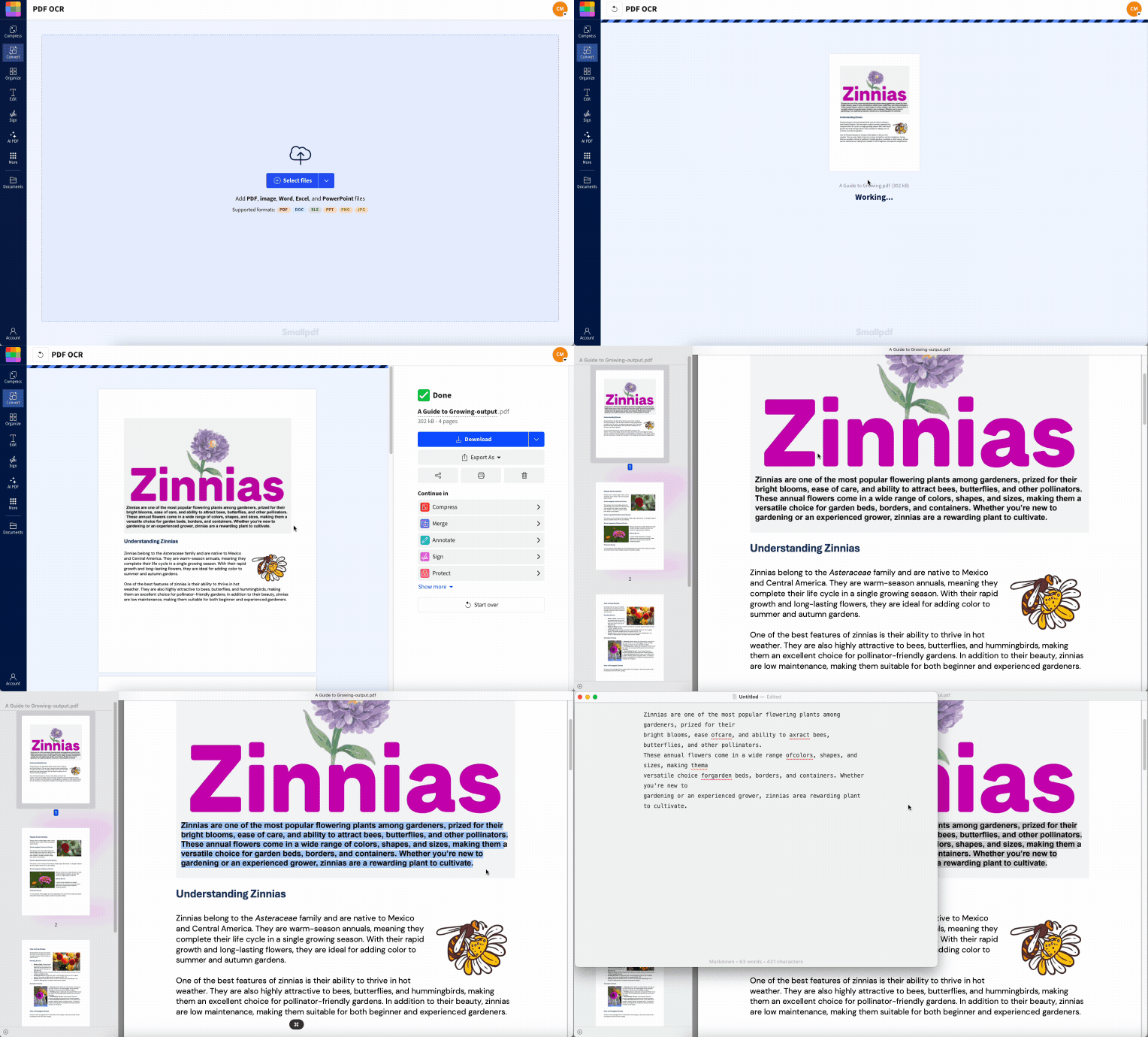
You can then copy text, update the content, or combine it with other Smallpdf features like Convert PDF to Word or Compress PDF.
What Is OCR for PDF Images?
OCR (Optical Character Recognition) is a technology that scans images and recognizes text, then converts it into a machine-readable format.
When you have a PDF that is actually just a photo of a page, OCR:
Scans the image
Detects shapes and patterns that look like letters and numbers
Builds words and lines out of those shapes
Adds a hidden text layer behind the image
After OCR, you can search, copy, and index the document like any regular text-based PDF.
OCR works best when:
The text is printed, not handwritten.
The contrast is high, such as black text on a white background.
The document is straight, not skewed or rotated.
The resolution is high enough for the letters to look sharp.
In other words, the clearer the scan, the better the result.
How To Extract Text From a PDF Image Online
Using an online OCR feature is usually the fastest way to extract text from images in PDF, especially if you do not want to install extra software.
Step 1: Upload Your PDF Image
Open Smallpdf and go to the PDF OCR feature. Drag and drop your PDF into the upload area, or click “Choose File” to browse from your device.
You can also import files directly from Google Drive, Dropbox, or OneDrive if your scanned PDF is stored in the cloud.
Step 2: Choose Your Output Format
Once your file is uploaded, you will see options for the output format. You can:
Keep it as a PDF for a searchable document with a text layer.
Choose Word (DOCX) for a fully editable document.
Select TXT to get plain text only.
Pick the format that best fits your next step. For example, use Word if you need to rewrite a contract, or TXT if you only need the raw text for analysis.
Step 3: Wait for Processing
Our cloud-based OCR analyzes each page, looks at the images, and detects letters, numbers, and words.
Processing time depends on file size and page count, but most documents finish in under a minute.
Step 4: Review the Recognized Text
When OCR is done, you can preview the result. Scroll through a few pages and:
Try selecting text with your mouse.
Check headings, numbers, and special characters.
Look at any small or light-font text to confirm it was captured.
If something looks off, you can run OCR again on a higher-quality scan or adjust your source file.
Step 5: Download and Use Your New File
Once you are happy with the result, click “Download.” Save the new file to your device or send it straight back to Google Drive, Dropbox, or OneDrive.
From there, you can search inside the document, copy specific parts, or open it in your favorite editor to update the content.
Copy and Convert Text After OCR
Once OCR has processed your PDF, working with the text becomes much easier.
How To Copy Text From a Scanned PDF Image
To copy text from a PDF image after OCR:
Open your processed PDF in your viewer of choice.
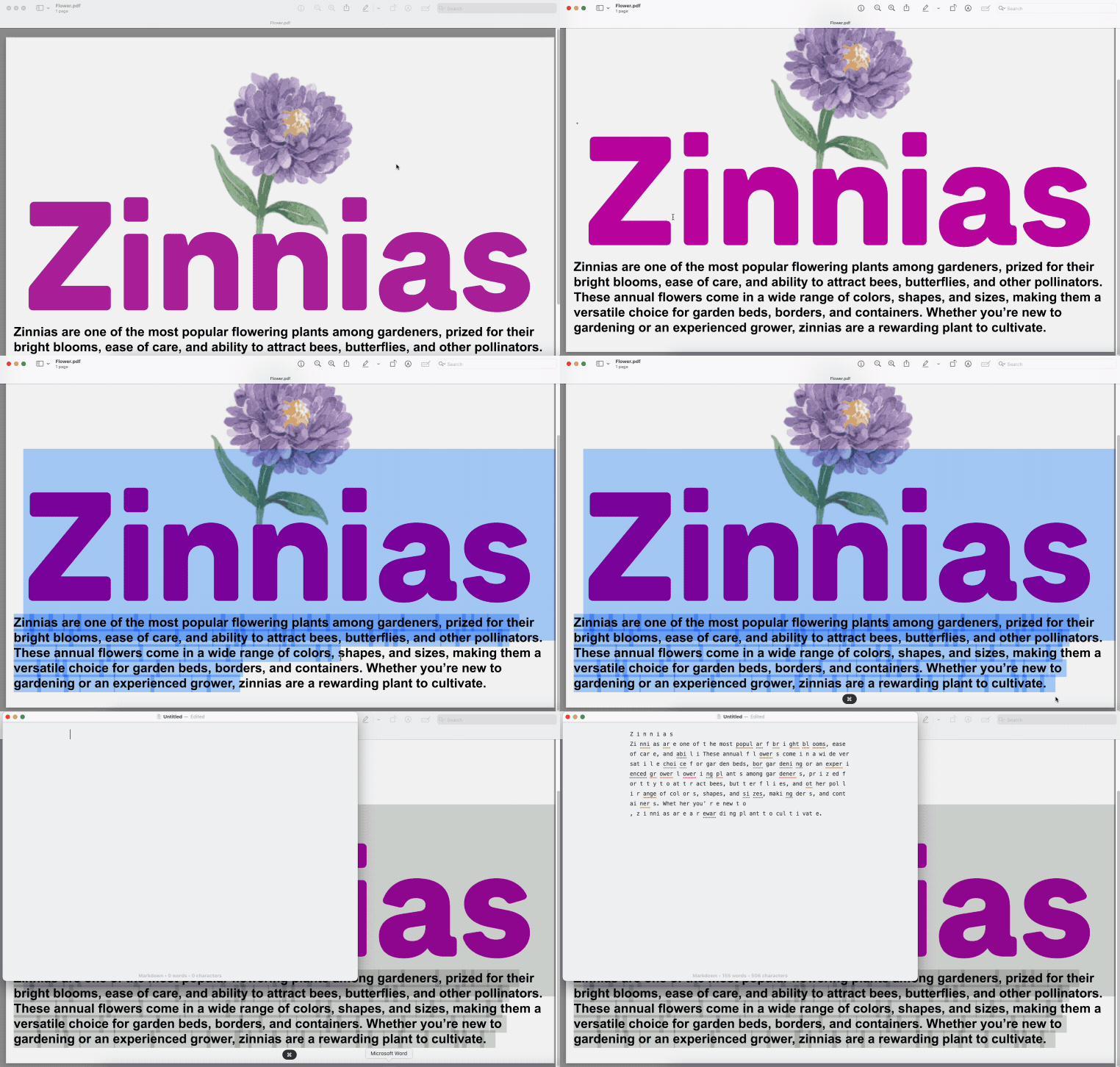
Click and drag over the text. If it highlights, OCR worked.
Press “Ctrl+C” (or “Cmd+C” on Mac) to copy.
Paste it with “Ctrl+V” (or “Cmd+V”) into Word, email, or any editor.
If you can’t highlight anything, the PDF still doesn’t have a text layer. You may need to run OCR again or check the image quality.
Convert a PDF Image to Word or TXT With OCR
If you plan to heavily edit the content, converting the entire PDF image to Word or TXT is often better than copying and pasting.
Word (DOCX) keeps layout, fonts, and images, so you can edit the document while keeping the original structure.
TXT gives you plain text with no formatting, which is helpful for data analysis, scripts, or importing into other systems.
With Smallpdf’s OCR feature, you get exactly the file you need when processing finishes.
Advanced OCR Uses: Multi-Language and Batch Files
OCR is not just for single English documents. You can use it in more advanced ways, too.
Multi-language PDFs
If your PDF includes more than one language, OCR can still work as long as those languages are supported. For example, a research paper with English body text and German references can be recognized in both languages. You may see slightly lower accuracy, so it is worth double-checking names and technical terms.
Multi-page and batch scanning
You can upload multi-page PDFs and process them in one go, instead of page by page. This is useful for:
Large contracts or reports
Entire scanned archives
Combined invoices or receipts
Many teams also batch files. For instance, an accounting team might export a month of scanned receipts as a single PDF, run OCR once, then search for vendor names and totals.
Mixed content documents
If your PDF has both images and text, OCR will add text layers for the image-only sections. The original text remains as it is, so you get a fully searchable file across both types of content.
OCR Accuracy Tips and When It May Not Work
Good input quality is the best way to improve OCR accuracy. A few simple habits make a big difference.
Tips for better OCR results:
Scan at 300 DPI or higher for crisp text.
Keep pages as flat and straight as possible.
Use good lighting and strong contrast when taking photos.
Avoid busy backgrounds or patterned paper.
Use clear, standard fonts for printed documents.
Common OCR limitations:
Handwritten text is often recognized poorly and may need manual typing.
Very small fonts can be missed or misread.
Text printed over images or gradients is harder to detect.
Damaged, faded, or blurry scans will reduce accuracy.
If you are working with very old documents or complex designs, expect some clean-up afterward.
Fix Issues When You Cannot Select or Copy Text
Sometimes, even after OCR, you may still have issues with text selection or copying. Here is what to check.
1. Check if the PDF is still image-only
Try selecting a single word. If nothing highlights, the page is still just an image, so OCR did not run or did not finish. Upload the file again and repeat the OCR process.
2. Look for security restrictions
Some PDFs block copying. If you see error messages about permissions, you may need to unlock the file first using a feature like Unlock PDF, assuming you have the right to do so.
3. Re-run OCR on problem pages
In complex layouts with columns or tables, some text may be skipped. Try running OCR again on smaller sections or individual pages.
4. Use screenshots as a workaround
If you get a “PDF insufficient permission for text extraction” error, you may not be allowed to copy text from that file. One workaround is to take a screenshot of the visible page and then run OCR on that image instead.
Start Extracting Text From PDF Images Today
Extracting text from images in PDF does not need to be complicated. With OCR, you can unlock the text inside scans, screenshots, and image-only PDFs and reuse it wherever you need.
We see teams use Smallpdf OCR every day to digitize contracts, pull data from invoices, and make research papers searchable. You can do the same in just a few clicks.
Want to Extract Text From Image Using Smallpdf OCR?
FAQs: Extracting Text From Image in PDF
Can I extract text from multiple PDF pages at once?
Yes. Smallpdf’s OCR feature processes entire multi-page PDFs in one go, so you do not need to run each page separately. For very large files, you can split them first, then process them in smaller batches.Can I extract text from several PDFs at the same time?
You can upload and process multiple PDFs one after another in a single session. If you are a Pro user, higher file size limits make it easier to handle large batches of scanned documents.What languages does Smallpdf OCR support?
Smallpdf OCR supports many common languages, including English, Spanish, French, German, Italian, Portuguese, and more. For best results, make sure the main language in your document is supported and clearly printed.Is the extracted text 100% accurate?
No OCR is perfect, but for clear, printed text, accuracy is often between about 95 and 99 percent. Always review important documents, especially numbers, names, and special characters, before you share or sign anything.Can I extract text from password-protected PDFs?
You need to unlock password-protected PDFs before OCR can access the content. If you know the password, you can open and unlock the file first, then run OCR. If you do not have the password, taking a screenshot and running OCR on the image may be your only option.Can you convert Kindle to PDF on a Mac?
Yes, the same process works on Mac using Calibre and the DeDRM plugin. The steps are identical to Windows.Why does the formatting look different after OCR?
OCR focuses on capturing the text, then tries to rebuild the layout as best it can. Complex designs, columns, or tight tables may not look exactly the same. Converting to Word usually preserves more structure than TXT, but you may still need a bit of manual clean-up.Can I use OCR on handwriting?
You can try, but results will vary a lot. Neat, block-style handwriting might be readable in parts, but cursive or messy writing usually needs manual typing. For important handwritten notes, it’s safest to review and correct the output carefully.What is the maximum file size for OCR processing?
Free users can work with smaller files, while Pro subscribers have higher limits that support large scans and combined PDFs. If your file is too big, you can use features like Compress PDF or Split PDF before running OCR.Is my data secure when using online OCR?
Yes. Files are encrypted during upload and processing, then automatically deleted from our servers after a short time. Smallpdf follows strict security standards such as GDPR compliance and ISO 27001 certification to keep your data protected.Extract text from image-based PDFs using OCR with Smallpdf Pro
Related Articles