


- CompressConvertAI PDF
- Organize
- View & Edit
- Convert from PDF
- Convert to PDF
- SignMoreScan
- Home
- ›
- ›Links in PDF Not Working? Common Reasons and How To Fix Them
Links in PDF Not Working? Common Reasons and How To Fix Them
Links in PDF not working? Fix them fast with Smallpdf, and make sure every PDF you send or share stays clickable, clear, and easy to open.
You’re not the only one who’s clicked a link in a PDF only to have nothing happen.
It’s a small issue—but a frustrating one—that can make a simple task harder than it should be. Luckily, there are a few common causes, and once you know what to look for, the fix is usually quick and easy.
Quick Fixes if Your Links in PDF Aren’t Working
Check for typos or missing “https://” in URLs.
Don’t “Print to PDF”—use “Save As PDF” instead.
Re-export from the original file to preserve links.
Try opening in another PDF viewer.
If restricted, use Unlock PDF (with permission) to re-enable links.

Fix Broken or Incorrectly Formatted Links in PDFs
It sounds obvious, but a tiny mistake in the URL can be all it takes to break a link. If even one letter is wrong, or if the link is missing the “http://” or “https://” at the beginning, your browser could return an error, or your PDF viewer might not recognize it as a clickable link. Even extra spaces or punctuation at the end of a URL can cause problems.
Common URL mistakes to check for:
Missing HTTP or HTTPS protocol at the beginning
Extra spaces before or after the URL
Wrong punctuation marks (periods, commas) at the end
Broken redirects or outdated links
Typos in the domain name or path
If PDF links not working is an issue you’re facing, the first thing to check is whether the original links were correct before you even converted the document.
Quick fix: Test each link in your original document before converting to PDF. If the problem persists, try using our PDF Converter to turn Word and other documents to PDF format, with the links in place.
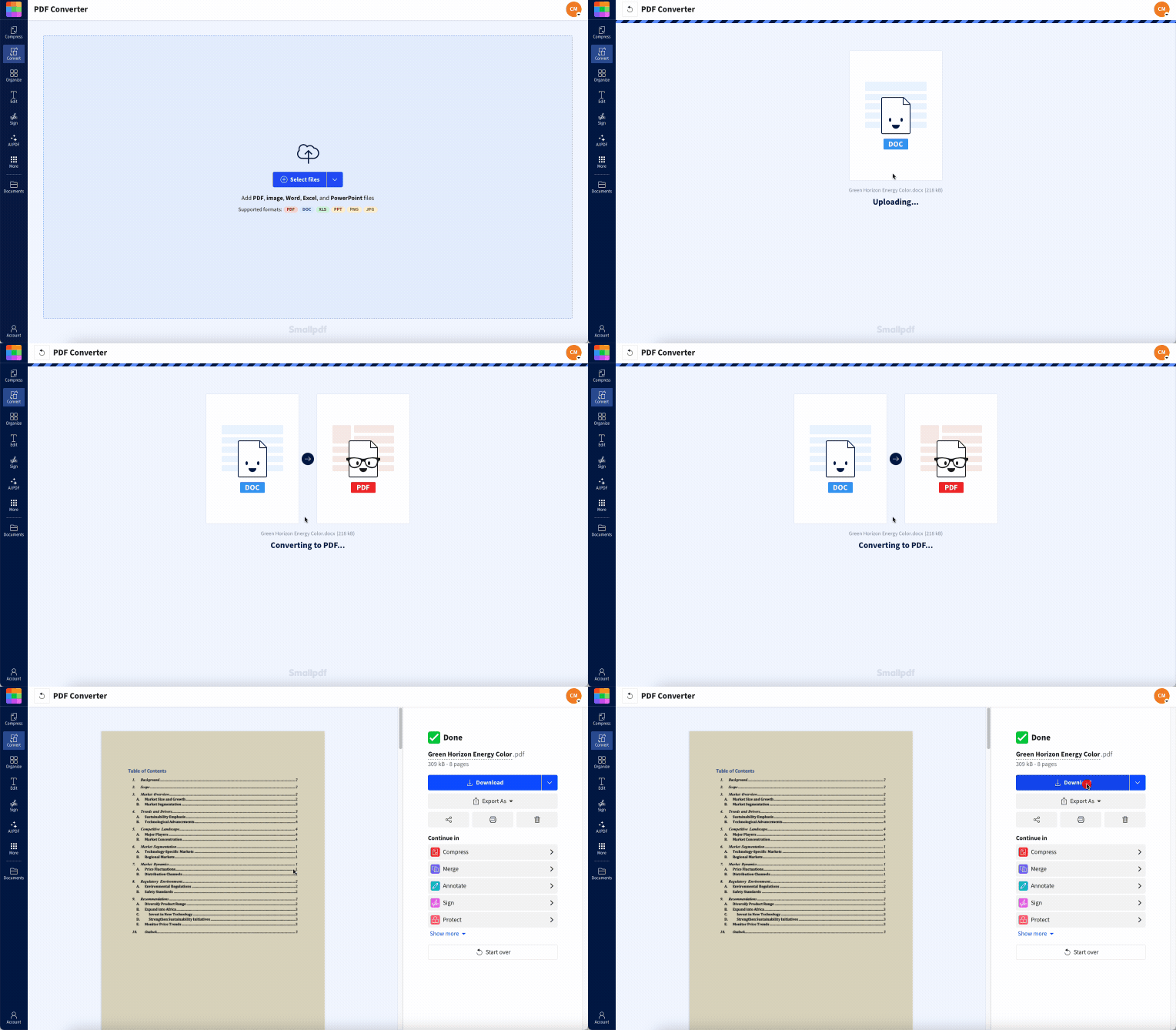
Next step: Use the converter below to upload your Word file and export it to PDF with clickable links preserved
PDF Conversion Settings That Break Hyperlinks
Not all PDF creators handle links the same way. If you’ve ever used Word or other software to create a PDF with links, only for the links to not work, this could be why.
Some programs don’t always transfer hyperlinks correctly when exporting to PDF. And if the links were only styled to look like hyperlinks—like underlined blue text—but weren’t actually linked, they won’t work after conversion.
Don’t “Print to PDF”—Use “Save As” or “Export” Instead
The biggest mistake people make is using “Print to PDF” instead of “Save As PDF” or “Export as PDF.”
When you print to PDF, you’re essentially creating a flattened image of your document, which removes all interactive elements including hyperlinks. This is why Word to PDF links not working is such a common problem.
The right way to convert:
In Word: Go to “File,” “Save As,” and choose “PDF” as the format
In Excel: “File,” then “Export,” and choose “Create PDF/XPS”
In PowerPoint: “File,” then “Export,” and “Create PDF/XPS”
Preserve Document Structure and Interactivity
When saving from Office apps, make sure to check the “Document structure tags for accessibility” option. This preserves the interactive elements of your document, including hyperlinks. You’ll find this option in the Options dialog when saving as PDF.
Use a Converter That Keeps Links Active
Our PDF Converter preserves all hyperlinks automatically when converting Word, Excel, and PowerPoint documents. It’s designed specifically to maintain document interactivity, so you don’t have to worry about losing your links during conversion.
PDF Viewer and Browser Issues That Stop Links From Opening
Correctly formatted and error-free clickable links should work in every PDF viewer. But if you find this not to be the case, especially when opening a PDF in a browser such as Chrome, it might be because of security settings or browser extensions interfering with the file.
Try a Dedicated PDF Reader Instead of Your Browser
Quick test: Try opening your PDF in Preview on macOS or using our PDF Reader instead of Chrome or Edge. Built-in browser PDF viewers often have limitations that dedicated PDF readers don’t. If links work in other apps but not in your browser, you’ve found your problem.
Chrome and Edge—Clear Cache and Disable Extensions
Browser extensions and corrupted cache files can interfere with PDF links. Here’s how to troubleshoot:
For Chrome:
Press Ctrl+Shift+Delete to open Clear browsing data (⌘+Shift+Delete on macOS)
Select “Cached images and files” and click Clear data
Try opening your PDF in an incognito window (Ctrl+Shift+N)
For Edge:
Press Ctrl+Shift+Delete.
Check “Cached images and files” and click Clear now.
Test in InPrivate browsing mode.
Mobile Viewers—Android and iPhone Limitations
This can be even more of a problem on mobile—whether you’re on Android or iPhone—because some PDF viewers still don’t support automatic link detection. Many mobile PDF apps struggle with hyperlink recognition, especially for URLs that weren’t properly formatted during conversion.
Mobile solutions: Try a dedicated PDF reader app, these sometimes have better link detection than built-in viewers. On iPhone, the default Preview app works better than third-party readers for PDFs with links.
PDF Security Settings That Block Hyperlinks
If a PDF has strict security settings, it can block links from working. Some documents are locked to prevent changes, and those same settings can also disable links. If your links in a PDF won’t open no matter what, check the document’s security settings for permissions that might be too restrictive.
Check Permissions and Document Restrictions
How to check if security settings are the problem:
Right-click on the PDF and select “Properties” or “Document Properties.”
Click the “Security” tab.
Look for “Content Copying” and “Page Extraction” permissions
If these show “Not Allowed,” the document may be blocking links too.
Unlock a Restricted PDF When You’re Allowed
If you have permission to modify the PDF or if the restrictions aren’t legally required, you can try to remove them. Our Unlock PDF tool might be able to remove restrictions if the encryption isn’t too strong. Only use this for documents you own or have explicit permission to modify.
More Issues That Can Break PDF Links
Beyond the main causes, there are a few other edge cases that can prevent PDF links from working properly.
Email Clients Altering Attachments
Sometimes, links work just fine when you test them, but as soon as you send the PDF as an email attachment, they stop working. An email link in PDF not working can happen because email clients like Gmail or Outlook sometimes modify attachments for security reasons, which can interfere with hyperlinks. If the PDF was compressed or altered during sending, that could be the issue.
Repair a Corrupted PDF: Re-export or Re-download
If your PDF file got corrupted during transfer or storage, links might stop working even if they were fine originally. Signs of corruption include:
Links that worked before suddenly don’t
Random display issues
Error messages when opening the file
Quick fixes: Try re-downloading the PDF if you got it online, or re-export it from the original document if you created it. Sometimes a simple “Save As” to create a new copy can fix minor corruption issues.
Ready to fix your PDF links? Start your free trial to access all Smallpdf tools—including our PDF Converter that preserves hyperlinks every time.
FAQs: Fix PDF Links Not Working
Why are my hyperlinks not working in my PDF?
The three most common causes are incorrect conversion settings, browser security blocking links, or formatting errors in the original URLs.How do I enable hyperlinks in a PDF?
Hyperlinks should work automatically if properly formatted but try opening the PDF in a dedicated PDF reader and check your security settings if they don’t.How do I make a PDF link work?
Check for URL typos, use “Save As PDF” instead of “Print to PDF,” and test in a dedicated PDF reader rather than a browser.Why isn’t my link working after converting to PDF?
Most likely you used “Print to PDF” which flattens the document. Use “Save As PDF” or try our PDF Converter instead.Why do PDF links work on my computer but not my phone?
Many mobile PDF viewers have limited link detection. Try a different PDF app on your phone.Do links work in all PDFs?
Links work in most PDFs if they’re properly formatted and the viewer supports them, but security restrictions or conversion errors can disable them.Identify and fix link issues in seconds with Pro
Related Articles
